Friday, April 26, 2013

Leech Tunes Free today

There is a really good app gone free today which I use all the time.  When you are in your car playing music from your iPad or iPhone it is really annoying to try and touch the next button or volume buttons on the small native interface.

Leech Tunes provides a slick interface where you use gestures to skip to the next song, choose another playlist, raise the volume, pause etc.  This kind of interface is indispensable when driving and I have even found it useful at times even when just playing around the house because it is so user friendly.

Get it today while it is free.  normally this app is $1.99.


https://itunes.apple.com/ca/app/leechtunes/id345439314?mt=8

Thursday, April 11, 2013

StockTouch for iOS: The Trend is Your Friend!


StockTouch splash Screen iPad
As you may have read in my intro I am a Stock Trader by profession who loves tech and of course writing about it.  However, I have not written about any apps related to stocks yet.  Well today is the day I finally found a good one worthy of putting my name on.

This one is called StockTouch and it is currently free for the iPhone and iPad versions in iTunes.  Trying to get an idea for market direction requires some research, but StockTouch has a unique color coded display to show the history of individual stocks and sectors.  Take a look at the slideshow below to get an idea about what I mean.

This one shows the price increase percentage for the top 100 US stocks by sector starting at 5 years going to 1 day (For the 1 day chart there is a 20 minute delay on the quotes).  Take a look at the Materials group in the bottom middle.  We can visually see a trend downwards just by the amount of red showing versus green.  However, take a look at the Utilities right beside which is always up showing an uptrend in that sector.  This can give us an idea about which sector we may want to start investing in based on the trends.  However, the next slide show compares the same price increase, but relative to the S&P as a baseline.

5 Year trends for the top 100 U.S. stocks in each sector


Notice the materials sector again.  Even vs. the S&P it is even more red which can add confidence to the downward trend.  Note the Utilities has consistently beaten the S&P over the past 5 years.

5 Year trends for top 100 U.S. stocks by sector vs. the S&P.500

Now I am not trying to day that you should buy or sell something simply based on this information, but the trends are displayed in a very easy way to make them easy to identify.  This information can add value to the information you are already examining when deciding what positions to take.

In addition you can see global stock trends, volume ratios, individual stock charts and news as you drill down.  By looking at a day only you can visually see whether the market is up, flat or down on the whole.  Watch the video below from their website as it will display the additional features better than I will be able to in this blog.


Friday, April 5, 2013

Only $.99 And Must Be The Most Feature Rich iPhone Camera App Out There!


Pro Cam is really an amazing camera app for iPhone that is jam packed with features.  There is a list of the features below pasted from their website http://procamapp.com/ProCam/Home.html.

This camera even has the ability to take TIME-LAPSE photography and render it into video and FACE DETECTION.  That is really amazing since other apps sell uniquely for this function.  there are so many functions it comes with a downloadable PDF user manual from within the app you can open in iBooks to take full advantage of the camera.

Normally this app in only $0.99 anyways and it is probably the best value app out there I have seen, but better yet it is Free Today so it fits with this blog if you are reading this on time! I have had this app for a while now and I use it for nearly everything and has officially replaced the native camera app for me.

Get this app now and you will not regret it.  Here is the link to the iTunes site

https://itunes.apple.com/app/procam/id541557533?mt=8&affId=1855372&ign-mpt=uo%3D4

At the end is a nice video review of the app made by a guy named Jonathan on YouTube.


CAMERA FUNCTIONS

  1. Full focus and exposure control (touch focus / touch     exposure)
  2. White Balance lock 
  3. Adjustable image resolution (Full / High / Medium / Low)
  4. Adjustable aspect ratio (4:3 / 3:2 / 16:9 / 1:1)
  5. Adjustable JPEG compression quality (100% / 90% / 80%)
  6. Adjustable video resolution (Full HD: 1080p / HD:720p / VGA: 640x480 / Low:480x360)
  7. 6x digital zoom
  8. Geo location tagging
  9. Flash settings (Auto / On / Off / Torch)
  10. Alignment grids (Thirds / Trisec / Golden / Horizon)
  11. Font / Back camera support

SHOOTING MODES

  1. Single Shot
  2. Anti-Shake with adjustable sensitivity (High / Medium / Low)
  3. Burst mode with adjustable image quality (Full / VGA)
  4. Self-Timer
  5. Interval 
  6. Face Detection
  7. Big Button
  8. Video


Source: http://procamapp.com/ProCam/Home.html.

Great Video Review by Jonathan about the ProCam features.

Tuesday, April 2, 2013

Scanner OCR app Free today, but I would buy it anyways!


This App no longer seems to be available in the Canadian nor American App stores.


It has been very difficult to find an OCR scanner that actually works for free.  OCR means Optical Character Recognition which basically converts an image of text into editable text. This one is normally only $.99 but free for now and it works as good as can be expected.

Scanner OCR
Scanner OCR is an iPhone app, but it works on iPad as well.  You can scan documents and crop the image so that only text appears in the image.  The conversion worked well when I converted the text document into black and white from within the app otherwise there were a few inaccuracies.

In addition this app works without the use of internet.  Some apps send the document to a central server for conversion and then sends it back, but this one converts the document to text within the app with no data transfer.

You can send the text by email to yourself or save it to the library or open it in another app.  You can even email it as a PDF. Although that kind of defeats the purpose of the OCR, it is a useful function when you upload a word document that you can then convert to PDF and email it out.  Normally you need to pay to have the functionality as well using a different app.

If you are reading this and the price has gone back to $.99 and you need an OCR software I suggest you buy it anyways.  There is no point in paying more since I doubt a more expensive one will do a better job. 

Get it free while you can!

Thursday, March 21, 2013

The Best Ringtone App I have seen so far does it all!


I have gone through several Ring Tone Maker apps so far.  Some of them free and others that cost a dollar or two, but got them free on a daily promotion.  However, I have now come across the best one yet and it is free.

This Ring Tone app has the best of all worlds.

Ringtones
1: You can download from thousands of pre-made ring tones for free (many free apps make you pay for downloads).

2: You can create your own ringtones and message alert tones from a song you have in your iTunes library by cutting specific parts of the song you like.

3: You can record your voice or the surroundings using the built in microphone for up to three minutes and take a portion of that to create a ringtone.

4: When you are done with your creation you can send it out by email so that it can be saved to your hard drive and installed if you find that easier than uploading when your iPhone/iPad is plugged it.


There are instructions included within the app about how to upload the ringtone into your iTunes account and how to set the tone in your iPhone itself.

This app is made for the iPhone, but it can be used with the iPad.  Give it a try it is free after all.  Do you think the one you currently use is better?  Challenge me in the comments section below.  Perhaps we will discover an even better one together.

Friday, March 15, 2013

Do the "Wave" for your iPhone!


UPDATE:  When this blog was written WaveCam was free.  The price is currently .99 cents.


How many of us have tried to take a self-portrait by holding your iPhone straight out in front of you.  Do you get a picture of your arm in the picture or your shoulder looking in a funny position?  What about shots with your friend from further away.  Ask a stranger to take the picture for you if one is around?  Some cameras now have timers for the iPhone, but you need to get ready and pose before it goes off.  What if you could trigger the shot with a “wink” or a “wave”?  Well now you can.


Wave Cam and Wink Cam are two simple apps that use a form of motion detection to initiate a photo shot rather than a timer or by pressing a button.  These two apps need to use the front camera which is usually lower quality, but it is still great for taking self-portraits or pictures with your friends when there is no one around to take the photo for you.  Best of all they are both free, but do they really work?  In a nutshell Wave Cam seems to be the better of the two.


Wave Cam
Wave Cam takes a picture using a form of motion detection which recognizes when your hands (or head) passes through a certain location on the screen indicated by a hand as illustrated in the photo.  Simple is best and this simple set up works quite reliably.  Your hand passes through the designated place and a 3 second timer starts before the shot is taken giving you time to put on your best “Magnum” pose.  You can even move the hand to a location you want on the screen to avoid triggering it by mistake.  So what about Wink Cam?


Prepare the Shot and Place the Camera
Get into the picture yourself


3,2,1 Magnum

Wave to the camera


Wink Cam


Wink Cam is a great concept.  You have your face in the shot, “wink”, and then a 3 second timer starts so you can do your best “Blue Steel” pose before the photo is taken.  (Yes I like the movie Zoolander). It does work well when you are close up.  Meaning that your face is big enough on the screen for the app to recognize that you winked.  Good for head shots.  But when you are farther away from the camera it has a hard time detecting the “wink” as I experienced.  Maybe my eyes are small and my glasses interfere?


Place the Camera and get ready
Now do a BIG Wink


The thing is that Wave Cam works when you are near or far so why bother with two apps?  I have to say that I like the novelty of Wink Cam and the technology is fun, but with a limited use it just does not stack up to Wave Cam in my opinion.

Try them both and tell me what you think of them!

Tuesday, March 12, 2013

Don't even think about buying a wireless keyboard and mouse until you read this!


In my last Blog about the YouTube remote app I talked about how you would use this when you have a computer attached to your television or monitor. I also mentioned that you would probably have a wireless keyboard and mouse so that you can control your attached computer when you are sitting on the couch.


I do have a confession to make though.  I do not have a wireless keyboard attached to my computer.  I actually use my iPad as my wireless keyboard and trackpad for my computer attached to the television.  I have not seen the need to spend $70 and up for this when the iPad does a sufficient job for most circumstances.  Even the iPhone will do a fine job although the screen size of the iPad is an obvious plus in this regard.

So which is the best app to emulate a wireless keyboard and mouse?  I have been using Hippolite and more recently WiFi Touchpad free, but I stumbled on a new one that beats these guys hands down called Air Keyboard.  http://airkeyboard2.skygears.com/


Air Keyboard


Air Keyboard can emulate the native keyboard of the iPad and several others.  There is even an option to customize a keyboard to your own preferences.  Here are a few screen shots of what is available.


Native iPad keyboard emulator


Paint Program Layout


Laptop Keyboard


Laptop Keyboard 2


You do need to install a server application that works under the .NET framework in order to make this functional.  However, all the wireless keyboard apps I have tried require this as well so this is not new.  What is new is that you need to be sure to activate the .NET framework protocol in your computer before installing the application.  It is not complicated, but you need to follow the instruction foundon the website.  If you are using a Mac you do not seem to have to do anything outside of the regular installation.  http://airkeyboard2.skygears.com/windows-8-installation-instruction

There is a separate iPad and iPhone app.  Follow the links to download the one you need or both actually.  However the app for the iPhone is just ok.  It uses essentially the same native keyboard with no options.  If you only have an iPhone then I would suggest you download the Hippo Lite version instead.


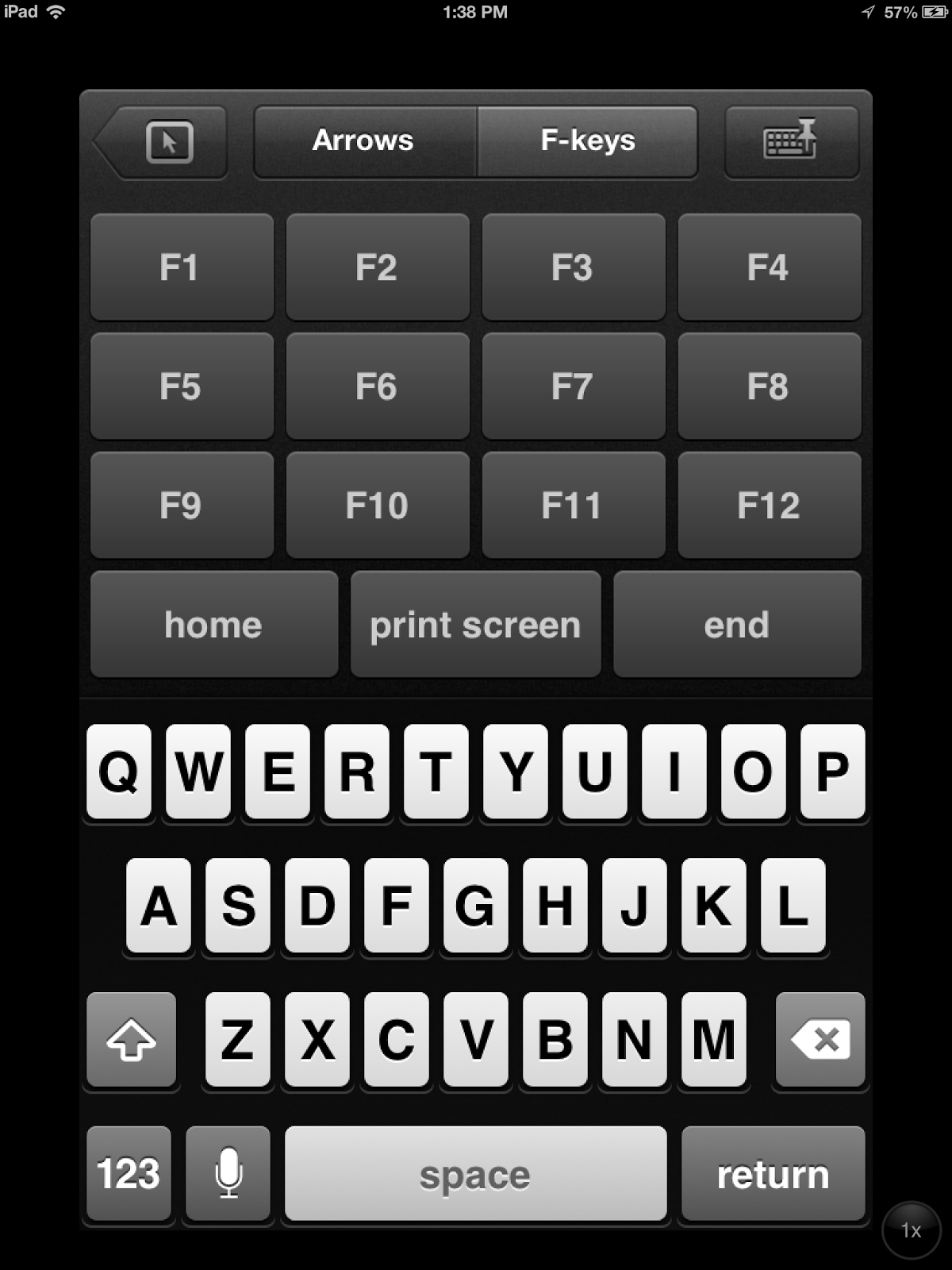
If you are using ONLY an iPhone as your wireless keyboard then HippoRemote lite offers arrows keys and function key options unlike the Air Keyboard version.  Plus there does not seem to be any native iPad app available with this one.

https://itunes.apple.com/ca/app/hipporemote-lite-wireless/id357348996?mt=8

Hippo Lite Keyboard and Track pad
Here are a few images.
Hippo Lite keyboard iPhone

Hippo lite keyboard with function keys
Hippo Lite Keyboard with search recall


I would not recommend downloading more than one version wireless keyboard and mouse since you do need to install the server program for each one which could slow down you computer.  So if you are using your iPad and iPhone download the Air Keyboard for both.  You will use you iPad most of the time anyways.


Last point of note about WiFi Touchpad. https://itunes.apple.com/us/app/wifi-touchpad-hd/id394594812?mt=8

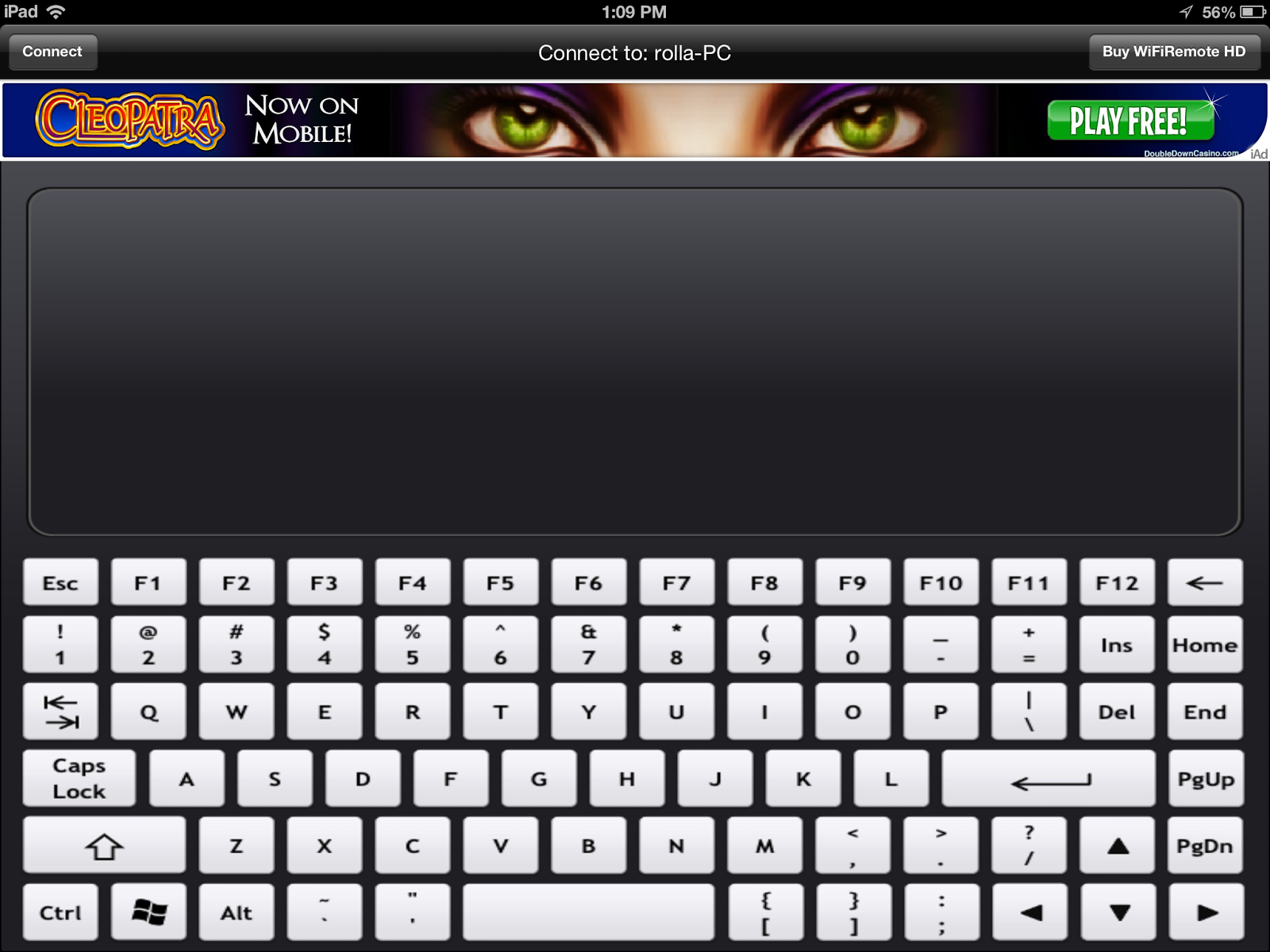
Wireless Touchpad Keyboard Layout
I find the keyboard to crampt and there are no other keyboard options so it just is not worth it compared to the others.  Here is an image.  

Wireless Touchpad


I also tried the app Remote Mouse https://itunes.apple.com/us/app/remote-mouse-mobile-trackpad/id431038047?mt=8 but you cannot use the keyboard in the free version.

Tuesday, March 5, 2013

Free YouTube remote app found in a hidden place!


If you like gadgets like I do you are probably connecting a computer of some sort to your television in order to watch YouTube videos, movies and music.  The thing is that in order to have some kind of remote control while you are sitting on your couch you traditionally need a wireless keyboard and mouse which you probably have as well.

However we are starting to see apps that can control specific applications using you iPhone or iPad.  Today we are going to talk about a remote for YouTube.  As the description would suggest a YouTube remote app will allow you to browse YouTube videos on your iDevice and then when you want to play a specific video you choose to display it on your television screen.  Perfect for the couch potato in me.

So I am using this YouTube remote free app called Clik.  It is an awesome app developed by a Canadian company no less.  So I demo it to a friend and tell him to go download it.  Where did it go?  The app is no longer available in the U.S. nor Canadian app store, but the website is still functional at http://www.clikthis.com/.  You just cannot download the app that goes along with it.  But triumph came through this disappointment.

So I did a thorough search to see what apps are available and there are a few of them out there, but you need to pay for them.  Feeling a bit frustrated I went back to using my regular apps for remote controlling my audio and visual experiences when I stumbled upon a hidden gem when I least expected it within the app called VLC remote.

VLC Video Player


The VLC remote is an iPhone (also Android) remote control application for the VLC player.  VLC Player is an awesome video player that I use all the time to play videos and dvd's on my computer.  It plays pretty much any video format you can think of, so if you do not have it for your computer you should download it now for free here for you computer.

Dowload the VLC player here: http://www.videolan.org/vlc/index.html


Now that you have the VLC Player we can get the iPhone remote app to control it.  There is one more thing you need to do to your computer first though.  Unlike the Clik app you need to install a server app to make the connection between the iPhone app and the computer video player on the network.  You can download it here and install it.

Download and install the free VLC helper here: http://hobbyistsoftware.com/vlc

VLC Remote app

Now that you have the proper computer application go ahead and download the iPhone app free as well here.


Once you have the VLC player downloaded install it onto your computer.  After that go ahead and install the VLC helper application.  This is what you should see when you launch the helper computer application.


Find Your Computer Here

Once they have both been installed open up the VLC player on your computer.  You do not have to have a video playing just open the application.  Then open up the VLC remote app on your iDevice.  It will find your computer as long as it is on the same internal WiFi network as shown here.

Tap your computer description from within the app, as the example is circled in red, and the remote will display functions allowing you to play, fast forward rewind and adjust the volume of the movie or video you are watching using the VLC player.

The free version is a lite version and there are other functions available such as searching files from your computer to play and adjusting sound using an equalizer should you choose to pay for the full version.


YouTube icon
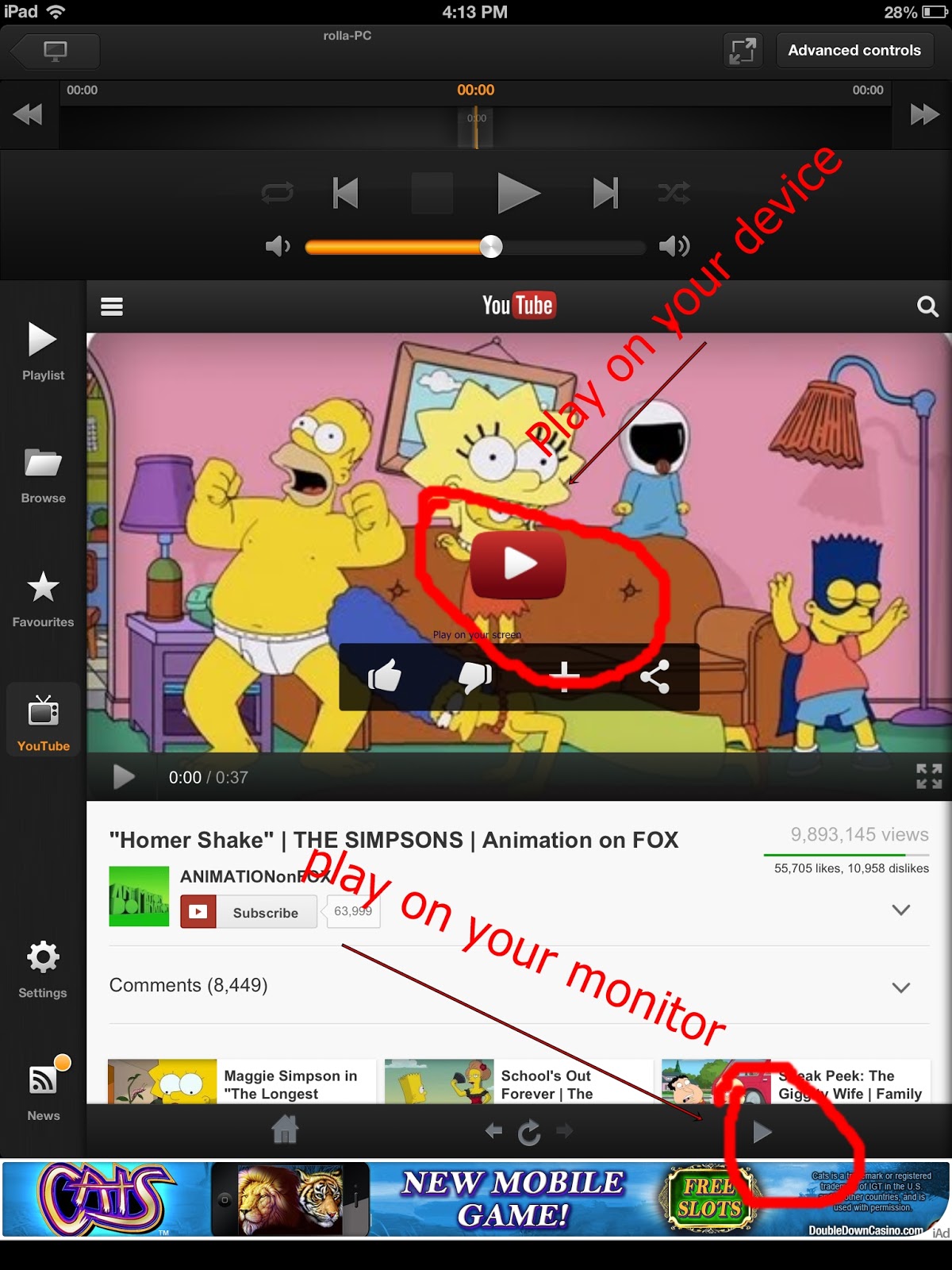
Two Play Buttons Displayed

If that was not awesome enough there is a little icon called YouTube shown on the screen.  So tap the YouTube icon and voila you can start searching video on you tube from within the app.  

There are two play buttons available as shown here.


In the center of the screen when the actual video is displayed you press play and the video will play on our iDevice screen.  Then there is a small grey play button found below the main screen.  Press that button and the video starts to play on your monitor or TV screen.

At the end of the day I think that the VLC remote app is superior to the Clik app since it is also a remote for the VLC player as well.  I must admit that I am disappointed though that Clik is not available anymore since it was so easy to make the connection between your device and the computer without the need to install a helper application.  Oh well maybe they will bring it back one day.

Have you found any other free YouTube remote apps I do not know about?

Tuesday, February 26, 2013

Mailbox. Good but not good enough?


Mailbox iPhone App
So after over two weeks of waiting the Mailbox App and now over 750,000 people behind me waiting I now have access and the opportunity to review it.  There is one thing to bear in mind before I begin is that it only works with Gmail in case you are using another email provider.

At first glance I must say that I do indeed like the app.  I was skeptical about the hype, but it is very easy to organize and manage your emails, but it is not all sunshine and roses here.  That said lets talk about the good stuff first.

There are a couple Big Advantages compared to the native email client app.  Firstly, you do not need to look at each individual email to choose what to do with it.  You can get rid of spam without opening it for example with just a swipe of you finger. 

Second I love that you can postpone emails to show up in your inbox tomorrow for example.  This ensure you do not forget about it if it is important as it appears again as a new email,  almost like a reminder function.  Again the swipe of the finger interface is really nice for this. 

You can also categorize your emails with a swipe into the default categories "To Read", "to Watch" or "To Buy" or you can create custom folders as well.

Watch the video embedded here to get an idea about what I am talking about.


Once you have installed the app you will see an additional section on the left hand side column called "Mailbox".  This is where you will find the emails you have categorized as "to watch", "to Buy" etc.  No big deal since you can customize that section within the web app already so Mailbox is just doing that for you.

So now lets talk disadvantages.  However, I have already encountered a limitation since it only works with Gmail.  Currently I have a Gmail and a Hotmail account which I currently manage both within the native app.  So now do I need two applications to manage my emails instead of one now anyways?  Hmmmmm. 

Also, on the iPhone the layout works great, but there is no app native for the iPad so the interface is not quite as appealing especially when you are uses to the iPad virtual keyboard for composing email.

You cannot put the app in portrait mode.  I tried to turn my iPhone sideways so that I could read my email in larger print while seeing the full sentence in one line and it would not turn into portrait mode.  The iPhone screen can feel a bit small for reading so I like reading in portrait mode to make the font a touch larger so this was a disappointment.

Lastly there are some issues with the formatting of some graphs and charts.  look at the examples below.

Here is a chart as it appears in the native email app.


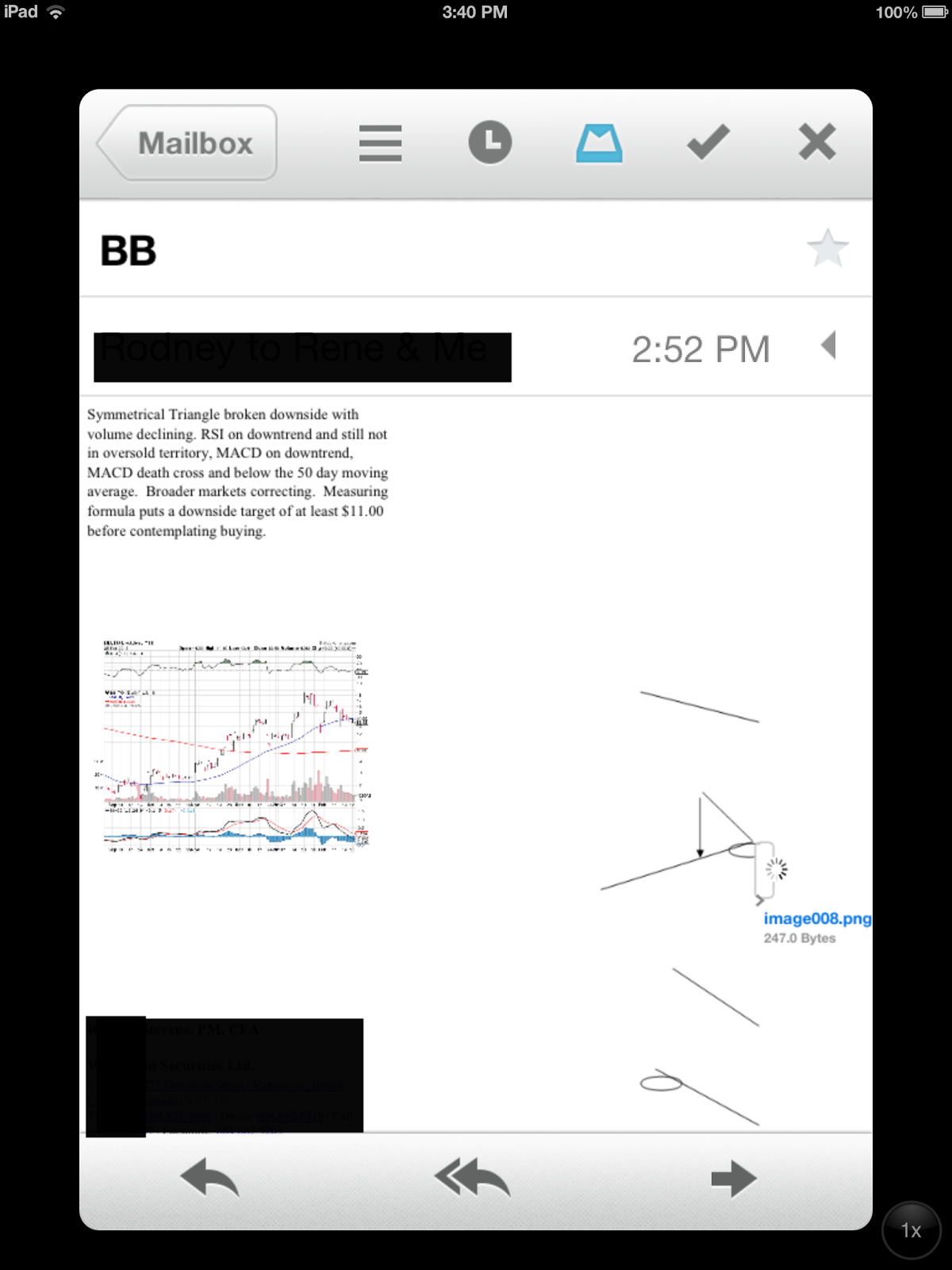
Here is the same chart in the Mailbox app.


Here is a Graph in the native email app.


Here is the same graph in the Mailbox app.


Basically the charts and graphs I experienced are not readable. Not great.

So what is the conclusion?  Well I will not be using the Mailbox app on my iPad.  However, in all fairness the app was not made for the iPad and in reality I do most of my reading on that since it has the larger screen.  Also, I will use the native iPad app to manage my Gmail and Hotmail accounts within the same app.  So will I use it with my iPhone?  Yes.  I do like the layout better than the native app and the quick ability to get rid of spam emails without actually opening them up.  Good for an iPhone.  Any emails I cannot read with graphs or charts I will categorize them for reading later in my iPad or the computer since that is easy to do as well.

Will you use it?

Wednesday, February 13, 2013

The Mailbox app you can't have yet!


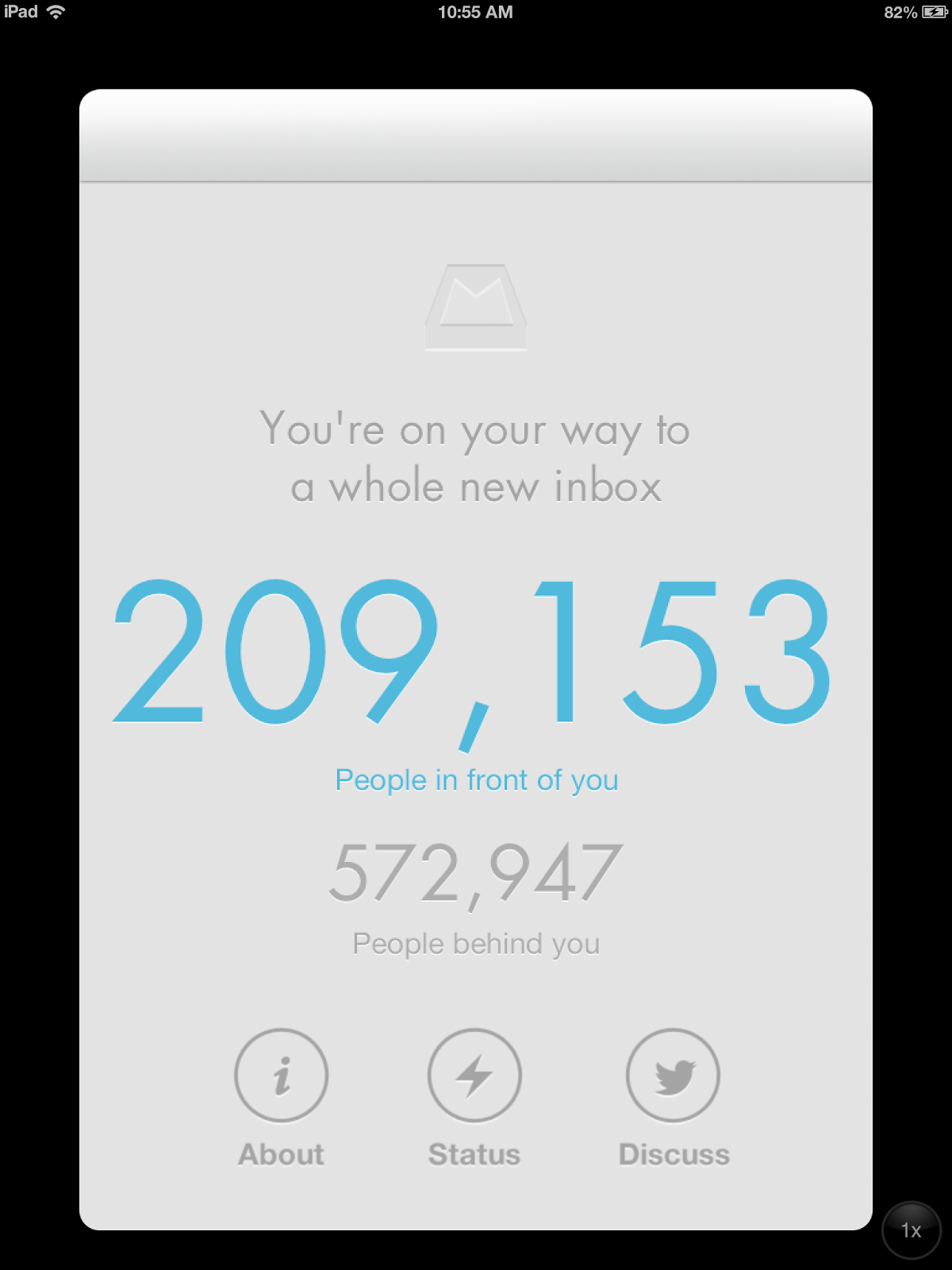
So I am doing something here a bit unorthodox by writing about an app that I have not used yet as I am still on a waiting list for this new Mailbox app.  A waiting list! But I cannot believe the hype going on around this.  I am not even sure if this is an actual waiting list or just a way of getting more hype.  Whatever it is it is working.


The claim is a revolutionary way of managing your emails, but I really think this app will have to turn water into wine to live up to the hype.  Currently there are over 200,000 people in front of me and many more waiting behind me to get this app.  Some reviews have come out so far and have been positive so we will see if it does indeed live up to this hype.

Of course I will have to make a review of this app when I do actually get it.  If you want to get on the waiting list yourself you can follow this link or click on the picture to get you to their homepage.  I have been waiting for what feels like a week so far and there were about 360,000 people in front of me when I first got the app.

I must admit that I am intrigued in part because it is backed by Orchestra the Todo app I blogged about before that I really like.  Read it here if you have not done so already.  So my hopes are high and i am on the waiting list:-)